

8+ Tips for Easier Online Job Applications
Do you hate online job applications?
You know, filling out all those fields and hoping that your application actually gets there and they read it?
No one is in love with using online job applications.
I don’t like online job applications either! I have wrestled my way through many of them on behalf of clients who threw in the towel or didn’t even know where to begin.
Mailing a resume or dropping one off seems a lot easier but not many companies let you do that anymore.
Prescription for greater success with online job applications:
Note: I am a PC user. If you use a MAC, you may need different directions.
First, prepare a text version of your resume. Here’s how!
1. → Create your resume in Microsoft Word format first
Always write your resume in Microsoft Word first even if you are applying online. Many online job applications take the Word version easily others don’t.
Use your presentation resume at interviews and when networking.
Creating your resume in an eye-appealing layout does something for you psychologically too. It is easier to visualize your talents and remember your accomplishments.
Some people might think all they do is fill in the forms online so they don’t need to write a resume. However, you will miss keywords and struggle to figure out your accomplishments.
In addition, if you follow this formula, you can use it over and over again with minor changes for other applications. Otherwise, you will be starting from scratch each time.
2. → Convert MS Word document into plain text.
Save the document as a .txt version and select the “allow character substitution this time as you save it. I will give you more instructions later. 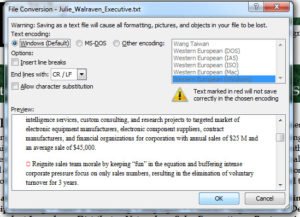
3. → Reopen the document in MS Word, use the “find and replace” function
Replace any odd characters which are probably your bullet points now converted into “?” marks. I use “replace all” and replace the “?” with “+” most of the time.
Double-check to see if anything you didn’t want converted also changed. Lately I find that the em dash “—” that I use between dates also gets changed to a “+” and I don’t want that so I change it back to a “-” hyphen.
4. → Reformat your Keyword section
It will have issues with bullets but is probably all jammed together. I make this into a long list. Be precise in keyword selection using terms in the online job applications. If you use job description words and phrases, you are more likely to match the job.
5. → Check formatting and remove any “Page Two” information headers
The document becomes one long document at this point.
6. → Set the margins
1 inch top, bottom, and left, and 1.25 on the right which will now paste better.
7. → Save as Plain text one more time.
Select the “insert line breaks” option this time.
8. → Reopen in Notepad.
MS Word will try to use its own formatting if you stay in Word so you need to move to Notepad, the very basic word processor that comes with your laptop or PC.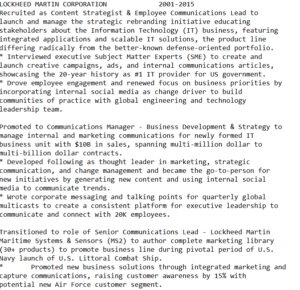
Yuck, huh? That’s just a snapshot of how the text version looks but this is what you need to get started on online job applications.
How to begin online job applications
Upload your Microsoft Word or Adobe PDF resume to online job applications first. Most Applicant Tracking Systems (ATS) systems will take your Word or PDF version. Some systems store an image of your resume. Others make them available for download.
The downfall is when the ATS system parses the information. Much of the time, the data goes into wrong fields. The purpose of the text version of your resume is to paste the correct information into the right fields.
9. → Armed with text version of resume, complete all fields in online job applications
Some applications will let you upload early and others will want you to upload your resume later in the process. Using the text version to cut and paste in all the areas of the application. Your formatting will not change.
10. → Answer everything fully.
Make sure you have available information like supervisor names, salary, specific months and years of employment, supervisor phone numbers, and supervisor e-mails before you start.
After you submit online job applications, follow up by phone
If you are unsure about how to follow up and when to follow up, I covered that in 11 Tips for Your Phone in the Job Search.
This should get you started, but remember I know all that and I get frustrated! Every application format is slightly different and there are areas of customized questions that you need to be ready to answer.
Online job applications are the tip of the iceberg. 85% of jobs are still in the hidden job market so don’t put all your energy into only online job applications. Diversify your job search with a robust networking strategy to find compelling opportunities before they are posted and opportunities that may never be posted.
Follow up on all online job applications. Don’t expect them to call you. Only apply for jobs you really want. Flooding online applications just makes it harder for anyone to be hired.
I help job seekers better understand job search, create resumes and LinkedIn profiles that get recruiter attention, and learn networking strategies. Learn more.

Resume Design and Job Seeking Tips
Here are Design Resumes' latest articles on job search, resume design, resume writing, and Linkedin optimization articles I've written.




Julie Walraven
Professional Resume Writer
Here are ways I can help you land your dream job.
You may be halfway across the country or the world. When you work with me, we share coffee, laughs, and concerns. This turns the scary job search into creative, consultative writing and learning sessions.